
USB HUB
Showing 1–20 of 64 resultsSorted by latest
- Price range: ₨3,499.00 through ₨4,999.00 Select options This product has multiple variants. The options may be chosen on the product page
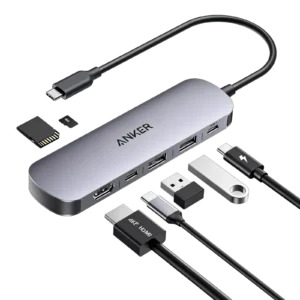
Showing 1–20 of 64 resultsSorted by latest
USB Hub Price in Pakistan | Type-C Hubs at FonePro
FonePro lists USB-C multiport hubs and accessories from brands including Anker and UGREEN. Whether you need a simple 4-port USB hub, a MacBook docking adapter, a hub with Ethernet or an HDMI hub for a 4K monitor, choose a model according to your device, required ports, charging needs and display resolution.
Browse the USB Hub collection at FonePro to check current prices and availability.
USB Hub Price in Pakistan
USB hub prices depend on the brand, number of ports, USB data speed, HDMI output, Ethernet support and Power Delivery (PD) charging.
The following models appear in FonePro’s current category listing:
| USB hub | Listed price | Best suited for |
|---|---|---|
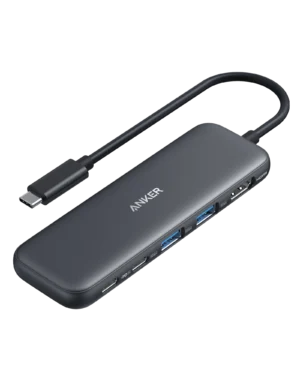
| Anker USB-C Hub A83D2 (7-in-1) | Rs. 7,499 | Multiple connections through one USB-C port |
| Anker 332 USB-C Hub (5-in-1) | Rs. 7,499 | Everyday multiport connectivity |
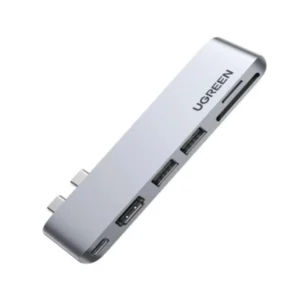
| UGREEN 80856 USB-C 6-in-2 Hub | Rs. 8,499 | Compatible MacBook Pro models |
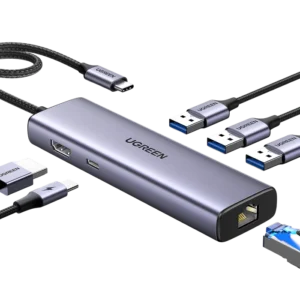
| UGREEN 15598 6-in-1 Hub with HDMI and LAN | Rs. 8,999 | Wired Ethernet and multiple connections |
Prices are taken from the current FonePro listings and may change. Confirm the exact product specifications, device compatibility and stock before ordering. The number of functions in a hub’s name does not necessarily mean that it has that many USB data ports.
Which USB Hub Is Best for a MacBook?
For a MacBook Air or MacBook Pro, a USB-C hub with HDMI, USB-A, USB-C Power Delivery and a card reader can be a useful upgrade if you regularly connect external devices.
The UGREEN 80856 6-in-2 hub is listed at FonePro for Rs. 8,499 and is designed for compatible MacBook Pro models. Check its physical connector layout and your MacBook model before ordering because some MacBook-specific hubs are designed to fit particular port arrangements.
If you want a more flexible adapter, compare the Anker A83D2 7-in-1 and Anker 332 5-in-1. Before buying, verify whether the exact model supports your required HDMI resolution and refresh rate, USB data speed and charging wattage.
For MacBook users, pay particular attention to:
- HDMI output at 4K 60Hz if you use a 4K monitor.
- USB-C PD input for pass-through charging.
- The USB-A and USB-C data speeds required by your SSDs and other devices.
- SD and microSD card slots if you transfer photos and videos.
- Ethernet if you need a wired network connection.
A hub advertised as 4K HDMI may support only 4K at 30Hz. Always confirm the complete resolution and refresh-rate specification.
Which USB Hub Is Best for an iMac?
The best USB hub for an iMac depends on its generation and the ports already available. A desktop iMac does not always need a laptop-style hub that attaches directly to the computer. A conventional USB-C or USB-A hub with a suitable cable may be more practical for a permanent desk setup.
For keyboards, mice, printers and flash drives, a basic multiport USB hub may be enough. For external SSDs, look for the required data speed. If you connect a 4K monitor or another display, confirm that the iMac itself supports the desired display configuration and that the hub supports the same output mode.
If you have several power-hungry devices, consider a powered hub or docking station rather than relying entirely on the computer’s USB port for power.
Before buying, check your iMac’s model year, available port types and the exact accessories you plan to connect.
Which USB Hub Is Best for an iPad?
A USB-C iPad can use a compatible hub to connect accessories such as USB drives, card readers, keyboards, Ethernet adapters and external displays. However, the best choice depends on the iPad model and the features you want to use.
For an iPad used for work or study, consider a USB-C hub with:
- Pass-through USB-C PD charging.
- HDMI output if you need an external monitor.
- USB-A ports for conventional accessories.
- SD or microSD card readers for photography.
- Ethernet if you need a wired connection.
If you want to use an external monitor, verify that your particular iPad supports the intended display mode. A hub may provide basic screen mirroring without supporting the external-display workflow you expect.
Also check the hub’s physical design if you use a keyboard case or stand. A long, heavy adapter hanging from the side of an iPad can put pressure on the connector.
Best USB Hub for MacBook with 4K at 60Hz
If you connect a MacBook to a 4K monitor, look specifically for a hub that explicitly supports 3840 × 2160 at 60Hz through its HDMI or DisplayPort output.
Do not assume that every USB-C hub with an HDMI port supports 4K at 60Hz. Some models support only 4K at 30Hz, which can make mouse movement and desktop navigation feel less smooth.
Before ordering, verify all of the following:
- The hub’s published display specification explicitly states 4K at 60Hz.
- Your MacBook’s USB-C or Thunderbolt port supports the required video output.
- The monitor and HDMI cable support the desired resolution and refresh rate.
- The hub’s other ports do not reduce the display mode you need.
- Any required charging input is connected correctly.
FonePro’s visible listings include HDMI hubs, but the category details do not clearly establish 4K at 60Hz support for every listed model. Confirm the exact model specification before purchase.
Which USB Hub Has Ethernet?
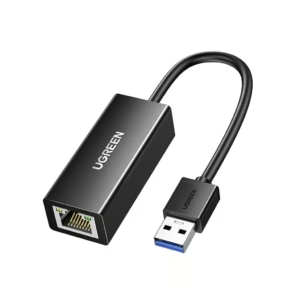
A USB hub with an RJ45 Ethernet port lets a compatible computer or tablet connect to a wired network. This can be useful for office work, large downloads, video meetings and locations where Wi-Fi is unreliable.
The UGREEN 15598 6-in-1 hub is listed on FonePro with HDMI and LAN connectivity at Rs. 8,999. Verify the supported Ethernet speed and HDMI refresh rate on the product page before ordering.
When comparing Ethernet hubs, look for:
- Gigabit Ethernet (10/100/1000 Mbps) if you need a standard gigabit wired connection.
- USB-C compatibility with your laptop or tablet.
- PD pass-through if you want to charge your device while using the hub.
- Driver and operating-system compatibility.
- The exact HDMI output specification if you also need an external monitor.
Remember that a Gigabit Ethernet port does not guarantee a 1Gbps internet speed. Actual performance also depends on your router, internet plan, cable and network conditions.
Best USB Hub for Multiple Ports
A multiport hub is useful if your computer has limited connections or you regularly attach several accessories.
Choose the number and type of ports based on your actual devices, not just the number in the product name.
| Hub type | Suitable for | What to check |
|---|---|---|
| 2-port hub | One or two extra accessories | Connector type and data speed |
| 4-port USB hub | Keyboard, mouse, flash drives | USB 3.x speed and power limits |
| 5-in-1 or 6-in-1 USB-C hub | Everyday laptop or tablet setup | HDMI, PD, card readers and USB ports |
| 7-in-1 or 8-in-1 hub | A more complete desk setup | Which ports support data, display and charging |
| 10-port or larger powered hub | Many peripherals and desk equipment | External power supply and per-port power limits |
A hub with eight functions may include HDMI, Ethernet, a card reader and a charging input—not eight USB data ports. If you need to connect multiple external hard drives, webcams or other power-hungry accessories, check the available power and consider a powered hub.
Best Anker USB Hubs in Pakistan
Anker is worth comparing if you want a multiport USB-C adapter for work, travel or a laptop desk setup.
FonePro currently lists these options:
- Anker A83D2 7-in-1 USB-C Hub — Rs. 7,499: Consider it if you need several types of connections through one USB-C port. Confirm its exact display, Ethernet and PD specifications before buying.
- Anker 332 5-in-1 USB-C Hub — Rs. 7,499: A more compact option to compare for everyday multiport connectivity.
The best Anker hub depends on your laptop and the ports you need. Do not choose solely by the number of ports. If you use a 4K display, check the maximum supported refresh rate; if you connect an SSD, check the data speed; and if you charge through the hub, check the supported PD input and power delivered to the laptop.
Best Baseus USB Hub in Pakistan
If you are comparing Baseus hubs, choose according to your device and required features rather than the brand name alone.
For a MacBook or USB-C laptop, prioritise USB-C compatibility, the correct HDMI output, PD pass-through and any Ethernet or card-reader requirements. For a simple desktop setup, a standard USB hub may be more economical than a full docking station.
FonePro’s current visible USB hub listings do not confirm a specific Baseus hub with all of these features. Check the live category for a matching Baseus model before treating it as available.
USB Hub vs Docking Station: Which Should You Buy?
A USB hub is generally a compact way to add several ports to a computer. A docking station is usually intended for a more complete desk setup, potentially with additional display connections, network connectivity and more extensive power support.
Choose a USB hub if you mainly need a few extra USB ports, a card reader or a single monitor connection. Consider a docking station if you need multiple displays, several high-speed devices, wired Ethernet and a more permanent workstation arrangement.
For a MacBook, iMac or iPad, confirm that the computer supports the intended display mode. The dock cannot add video capabilities that the host device does not support.
Common USB Hub Problems and How to Fix Them
The monitor works at 4K but only at 30Hz
Check the exact hub model’s supported resolution and refresh rate. Some hubs advertise 4K HDMI but are limited to 30Hz.
Confirm the monitor’s input settings, HDMI cable specification and the host computer’s display capabilities. On macOS, open Display settings and select 60Hz if it is available. If the option does not appear, test a compatible cable and a direct USB-C-to-DisplayPort or HDMI connection where supported.
The external monitor keeps flickering or losing signal
Disconnect the hub and all accessories, then reconnect the hub to the computer. Check the HDMI cable, monitor input and power connections. If possible, test another cable or monitor and connect the display directly to the computer to isolate the cause.
If the display works directly but not through the hub, the hub’s output mode, power arrangement or compatibility may be involved. Lower the refresh rate temporarily to test stability, but do not treat that as a permanent fix if you need 4K at 60Hz.
Ethernet is not working through the USB hub
First, confirm that the Ethernet cable and router port work with another device. Reconnect the hub, restart the computer and check the network settings.
On some systems, Ethernet adapters require compatible drivers or operating-system support. Check the hub’s chipset and manufacturer instructions, especially if the problem started after an operating-system update. If the adapter works on another compatible device, investigate the original computer’s settings before replacing the hub.
The iPad charges but does not show the external monitor
Check that the iPad model supports the required external-display feature and that the hub’s HDMI port supports the intended display mode. A charging port on a hub does not guarantee video output.
Test with a direct compatible video cable if possible. If direct video works but the hub does not, check the hub’s display specifications and compatibility with your iPad. Some hubs support basic mirroring but may not provide the external-display features you expect.
The hub becomes hot during use
Some warmth is normal when a hub handles data, video and charging at the same time. Disconnect unnecessary accessories and avoid covering the hub so heat can dissipate.
If it becomes unusually hot, smells burnt, disconnects repeatedly or causes connected devices to malfunction, unplug it and stop using it. Check the manufacturer’s guidance and warranty rather than continuing to operate a potentially faulty device.
The hub disconnects external SSDs or hard drives
External storage devices can require more power than a basic hub can reliably provide, particularly when multiple devices are connected. Try connecting the drive directly to the computer, removing other accessories or using a suitable powered hub.
Use a cable rated for the drive’s data speed and check whether the hub’s USB port supports the required transfer rate. If the drive disconnects only through the hub, test the same drive and cable directly before assuming the drive itself is faulty.
The hub does not charge my MacBook at full speed
Check that the hub has a USB-C PD input and that you are connecting the charger to the correct port. Some USB-C ports on hubs are for data only and do not accept power input.
Also verify the hub’s maximum PD pass-through rating. A hub advertised as supporting 100W input may deliver less power to the laptop after its own power requirements are accounted for. Use a compatible charger and cable with sufficient capacity.